
Building a RAG system just got much easier. Google’s File Search tool for the Gemini API now handles the heavy lifting of connecting LLMs to your data. Chunking, embedding, indexing are all managed for you. And with the latest update, it’s gone multimodal. You can now search through both text and images in a single pipeline, with custom metadata filtering and page-level citations built in. In this guide, we’ll walk through how File Search works and implement it with practical examples.
What File Search Does?
File Search helps Gemini access and use information from your data sources like reports, documents, research papers, code, and private knowledge bases.
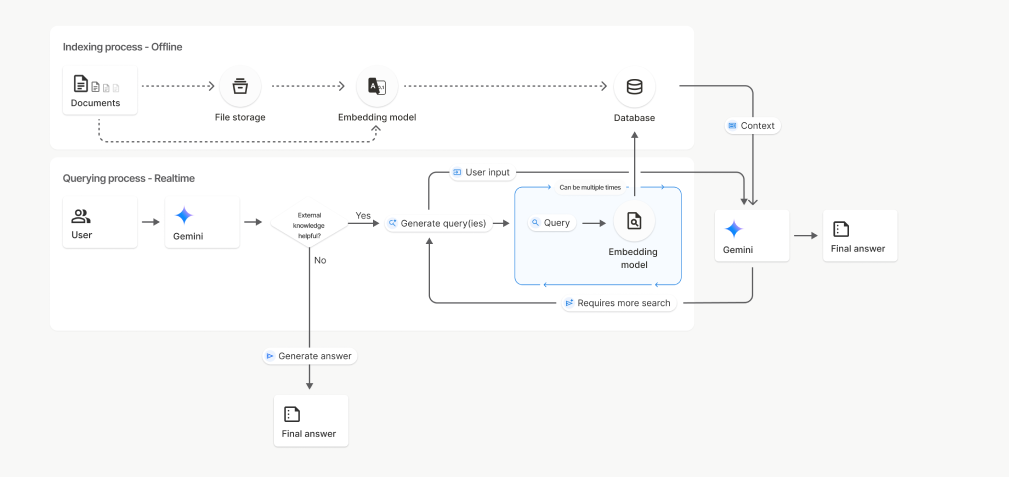
When you upload a file, Gemini breaks it into smaller pieces called “chunks” and creates embeddings for them. These embeddings are numerical representations that capture the meaning of the content, helping Gemini understand the context. They are then stored in a File Search Store for easy retrieval.
When you ask a question, Gemini searches the stored embeddings for the most relevant chunks and uses them as context to generate answers. This is the essence of Retrieval Augmented Generation (RAG).
Gemini File Search goes beyond just text. It also supports multimodal RAG, allowing text and images to be indexed and searched together. This means you can retrieve information from PDFs, images, charts, screenshots, and more using natural language queries.
For multimodal tasks, Gemini uses gemini-embedding-2 for image and multimodal embeddings, while gemini-embedding-001 handles text embeddings. Note that audio and video formats are not supported yet.
Also Read: Building an LLM Model using Google Gemini API
How File Search Works?
File Search is powered by semantic vector search. Instead of matching on words directly, it will find information based on meaning and context. This means that File Search can find you relevant information even if the wording of the query is different.
Time needed: 4 minutes
Here’s how it works step-by-step:
- Upload a file
The file will be broken up into smaller sections referred to as “chunks.”
- Embedding generation
Each chunk would be transformed into a numerical vector that represents the meaning of that chunk.

- Storage
The embeddings will be stored in a File Search Store, an embedded store designed specifically for retrieval.
- Query
When a user poses a question, File Search will transform that question into an embedding.
- Retrieval
The retrieval step will compare the question embedding with the stored embeddings and find which chunks are most similar (if any).
- Grounding
Relevant chunks are added to the prompt to the Gemini model so that the answer is grounded in the factual data from the documents.
This entire process is handled under the Gemini API. The developer does not have to manage any additional infrastructure or databases.
Setup Requirements
To utilize the File Search Tool, developers will need a few fundamental components. They will need to have Python 3.9 or newer, the google-genai client library, and a valid Gemini API key that has access to either gemini-2.5-pro or gemini-2.5-flash.

Install the client library by running:
pip install google-genai -U Then, set your environment variable for the API key:
export GOOGLE_API_KEY="your_api_key_here"Creating a File Search Store
A File Search Store is where Gemini stores and indexes embeddings created from your uploaded files. Once a file is uploaded and indexed, the indexed data remains available for retrieval until you manually delete it.
For text-only RAG, you can create a normal File Search Store. For multimodal RAG, where you want to upload and search both documents and images, create the store with models/gemini-embedding-2.
from google import genai
from google.genai import types
import time
import os
from pathlib import Path

# Do not hardcode your API key in the notebook.
# Set it as an environment variable instead.
os.environ["GOOGLE_API_KEY"] = "enter_your_api_key"

client = genai.Client(api_key=os.environ["GOOGLE_API_KEY"])

file_search_store = client.file_search_stores.create(
    config={
        "display_name": "my_multimodal_rag_store",
        "embedding_model": "models/gemini-embedding-2"
    }
)

print("File Search Store created:", file_search_store.name)
Output:

This update is important because the official docs show embedding_model: models/gemini-embedding-2 while creating a File Search Store for multimodal usage.

Upload a File
After the File Search Store is created, you can upload files to it. When a file is uploaded, Gemini File Search automatically chunks the content, generates embeddings, and indexes it for fast retrieval.
For text-based RAG, File Search supports documents such as PDF, DOCX, TXT, JSON, and programming files like .py and .js.
For multimodal RAG, File Search also supports image files. This means you can upload documents and images into the same File Search Store and ask questions that require both textual and visual context. For example, you can upload a research paper, a product image, and a chart, then ask Gemini to summarize the paper and explain the related visual information.
For image uploads, make sure the File Search Store is created with models/gemini-embedding-2. According to the official documentation, supported image formats are PNG and JPEG. Image files must be at most 4K x 4K pixels, and a request can include a maximum of 6 images.
Upload a Document File
# Upload and import a document into the File Search Store.
# The display name will be visible in citations.

operation = client.file_search_stores.upload_to_file_search_store(
    file="/content/Paper2Agent.pdf",
    file_search_store_name=file_search_store.name,
    config={
        "display_name": "Paper2Agent.pdf",
    }
)

# Wait until import is complete
while not operation.done:
    time.sleep(5)
    operation = client.operations.get(operation)

print("Document successfully uploaded and indexed.")
Output:

After this step, the document is chunked, embedded, indexed, and ready for retrieval.

Upload an Image File for Multimodal Retrieval
You can also upload an image file to the same File Search Store. This is useful when your application needs to retrieve information from product images, screenshots, charts, diagrams, or other visual content.
# Upload an image file for multimodal retrieval.

operation = client.file_search_stores.upload_to_file_search_store(
    file="/content/product_image.jpg",
    file_search_store_name=file_search_store.name,
    config={
        "display_name": "product_image.jpg",
    }
)

# Wait until import is complete
while not operation.done:
    time.sleep(5)
    operation = client.operations.get(operation)

print("Image successfully uploaded and indexed."
Output:

Once the image is indexed, Gemini can retrieve it during File Search when the user’s query is relevant to the image.
Upload Multiple Documents and Images
In real-world applications, you may want to upload multiple files at once. These files can include both text documents and images.
from pathlib import Path
import time

files_to_upload = [
    "/content/Paper2Agent.pdf",
    "/content/product_image.jpg",
    "/content/sales_chart.png"
]

for file_path in files_to_upload:
    operation = client.file_search_stores.upload_to_file_search_store(
        file=file_path,
        file_search_store_name=file_search_store.name,
        config={
            "display_name": Path(file_path).name,
        }
    )

    while not operation.done:
        time.sleep(5)
        operation = client.operations.get(operation)

    print(f"Uploaded and indexed: {file_path}")
Output:

After the upload step, all files are chunked, embedded, indexed, and ready for retrieval. If the File Search Store contains both documents and images, Gemini can retrieve relevant context from both sources while answering user questions.

Ask Questions About the File
Once your files are indexed, Gemini can answer questions using the uploaded documents and images as context. It searches the File Search Store, retrieves the most relevant chunks, and uses them to generate a grounded response.
For a text-only use case, you can ask a question about the uploaded PDF:
response = client.models.generate_content(
    model="gemini-3-flash-preview",
    contents="Summarize what is there in the research paper.",
    config=types.GenerateContentConfig(
        tools=[
            types.Tool(
                file_search=types.FileSearch(
                    file_search_store_names=[file_search_store.name]
                )
            )
        ]
    )
)

print("Model Response:\n")
print(response.text)
Output:
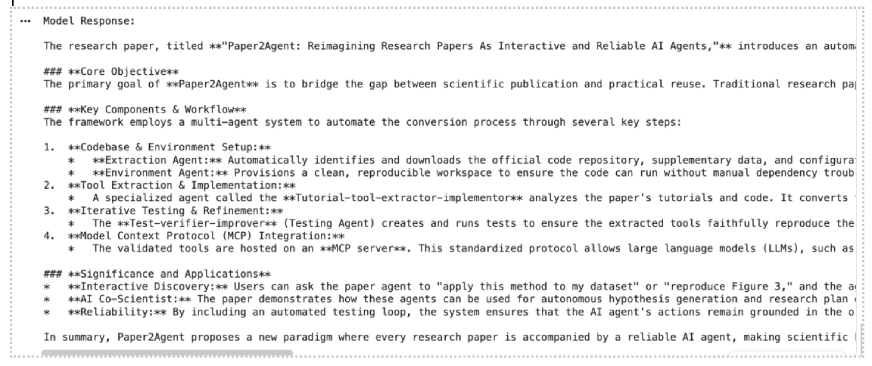
Here, File Search is being utilized as a tool inside generate_content(). The model first searches your stored embeddings, pulls the most relevant sections, and then generates an answer based on that context.
For a multimodal use case, you can ask a question that uses both the document and the image:
response = client.models.generate_content(
    model="gemini-3-flash-preview",
    contents="""
    Based on the uploaded research paper, and the images,
    summarize the key idea from the paper and explain what the images shows.
    """,
    config=types.GenerateContentConfig(
        tools=[
            types.Tool(
                file_search=types.FileSearch(
                    file_search_store_names=[file_search_store.name]
                )
            )
        ]
    )
)

print("Multimodal Response:\n")
print(response.text)
Output:

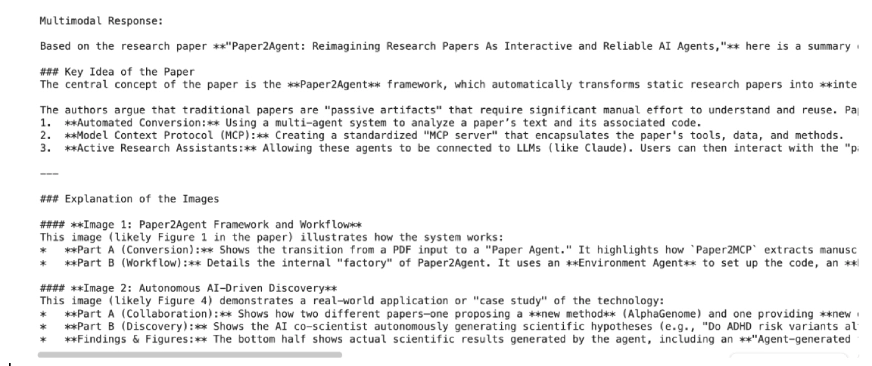
Here, File Search is used as a tool inside generate_content(). The model searches the stored embeddings, retrieves the most relevant text or image context, and then generates an answer based on that retrieved information.
Customize Chunking
By default, File Search decides how to split files into chunks, but you can control this behavior for better search precision.
operation = client.file_search_stores.upload_to_file_search_store(
    file_search_store_name=file_search_store.name,
    file='path/to/your/file.txt',
    config={
        'chunking_config': {
            'white_space_config': {
                'max_tokens_per_chunk': 200,
                'max_overlap_tokens': 20
            }
        }
    }
)
This configuration sets each chunk to 200 tokens with 20 overlapping tokens for smoother context continuity. Shorter chunks give finer search results, while larger ones retain more overall meaning useful for research papers and code files.
Show Citations for Retrieved Context
You can also print citation information to check which files or chunks Gemini used while generating the response. The official docs say citation information is available through grounding_metadata, and image references may include media citation details.
grounding_metadata = response.candidates[0].grounding_metadata

print("\nRetrieved Context:\n")

if grounding_metadata and grounding_metadata.grounding_chunks:
    for chunk in grounding_metadata.grounding_chunks:
        context = chunk.retrieved_context

        if context:
            print("Source:", getattr(context, "title", "Unknown"))
            print("Text:", getattr(context, "text", "No text available"))

            if getattr(context, "page_number", None):
                print("Page Number:", context.page_number)

            if getattr(context, "media_id", None):
                print("Media ID:", context.media_id)

            print("-" * 50)
else:
    print("No grounding metadata found.")
Output:
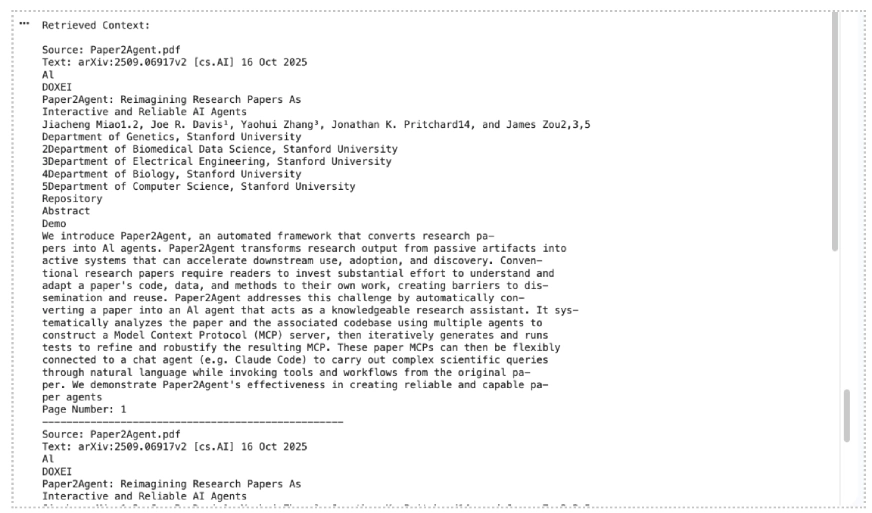
This makes the hands-on section stronger because readers can see not only the answer, but also the source context used by Gemini.

Manage Your File Search Stores
You can easily list, view, and delete file search stores using the API.
print("\n Available File Search Stores:")

for s in client.file_search_stores.list():

print(" -", s.name)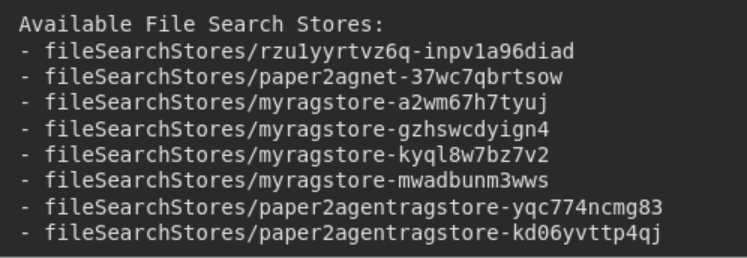
# Get detailed info

details = client.file_search_stores.get(name=file_search_store.name)

print("\n Store Details:\n", details
# Delete the store (optional cleanup)

client.file_search_stores.delete(name=file_search_store.name, config={'force': True})

print("File Search Store deleted.")
These management options help keep your environment organized. Indexed data remains stored until manually deleted, while files uploaded through the temporary Files API are automatically removed after 48 hours.
Also Read: 12 Things You Can Do with the Free Gemini API
File Search Support and Limits
File Search is available with the following Gemini models: Gemini 3.1 Pro Preview, Gemini 3.1 Flash-Lite Preview, Gemini 3 Flash Preview, Gemini 2.5 Pro, and Gemini 2.5 Flash-Lite.
Gemini 3 models allow you to combine File Search with custom tools via function calling. However, File Search is not yet supported in the Live API and cannot be used with certain built-in tools like Grounding with Google Search or URL Context.
File Search supports a wide range of file formats, including PDFs, Word documents, spreadsheets, presentations, JSON, CSV, HTML, XML, Markdown, YAML, code files, ZIP files, and Jupyter notebooks. For multimodal RAG, it also supports PNG and JPEG images when the store is created with models/gemini-embedding-2.
File Size and Storage Limits
| User Tier | File Size Limit | Store Capacity Limit |
|---|---|---|
| Free | 100 MB per file | 1 GB |
| Tier 1 | 100 MB per file | 10 GB |
| Tier 2 | 100 MB per file | 100 GB |
| Tier 3 | 100 MB per file | 1 TB |
Recommended: Keep each store under 20 GB for better retrieval performance and lower latency.
Regarding pricing, embeddings are charged at indexing time. Storage and query-time embeddings are free, and retrieved document tokens are billed as normal context tokens.
Also Read: How to Access and Use the Gemini API?
Conclusion
File Search takes the infrastructure work out of building RAG systems. No external vector databases, no custom embedding pipelines. Just upload your files and start querying. With the new multimodal support, you can now search across documents and images together. Metadata filtering helps you scope results to exactly what’s relevant, and page-level citations make every answer traceable back to its source. Whether you’re prototyping or building for production, File Search gives you a solid, managed foundation to build on. Get started at Google AI Studio or through the Gemini API docs linked in the article.


